


-
 SUAPP AIR
-
 Release Notes
- /741
 Is there a trial available for SUAPP AIR?
Due to many trial requests, the trial process has been temporarily changed to ensure stability for current members.
Please join our community using the link below. After joining, share your images, models, drafts, or photos in the group. Our support team will help with your trial and answer questions.
Whatsapp: https://chat.whatsapp.com/FfolbR8JYsD6VKgxMQpiM4
Telegram: https://t.me/SUAPP_AI

- /92
Select Tools
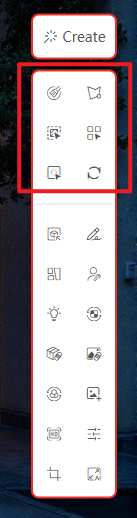
Tools 1–6 are selection tools used to define specific areas for localized editing. They support various selection methods that can be combined for greater flexibility and work seamlessly with features like Implanting and Magic Remover for precise control. These tools are part of an advanced editing suite, allowing fine-tuned adjustments to the original or rendered image—offering greater accuracy and creative control over your results.
Demo Video:
SUAPP AIR | 09 Partial Rendering
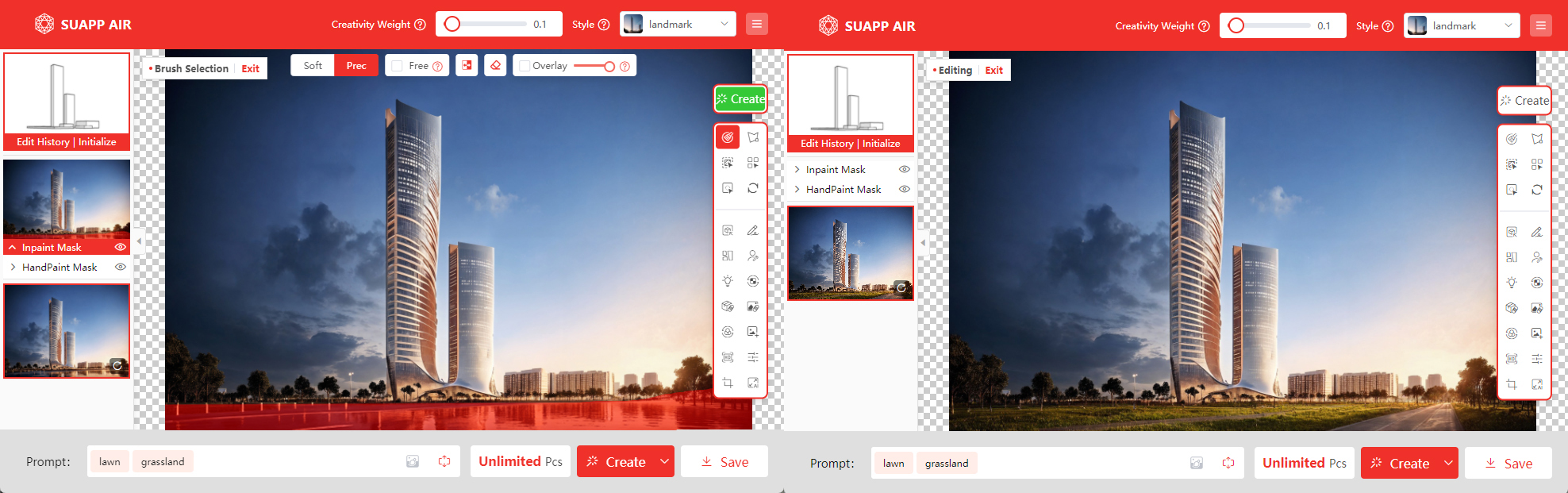
1. Brush Selection
Roughly paint over the areas of the image that need to be modified to define the repainting region. Ideal for manually selecting irregular-shaped areas for localized editing.
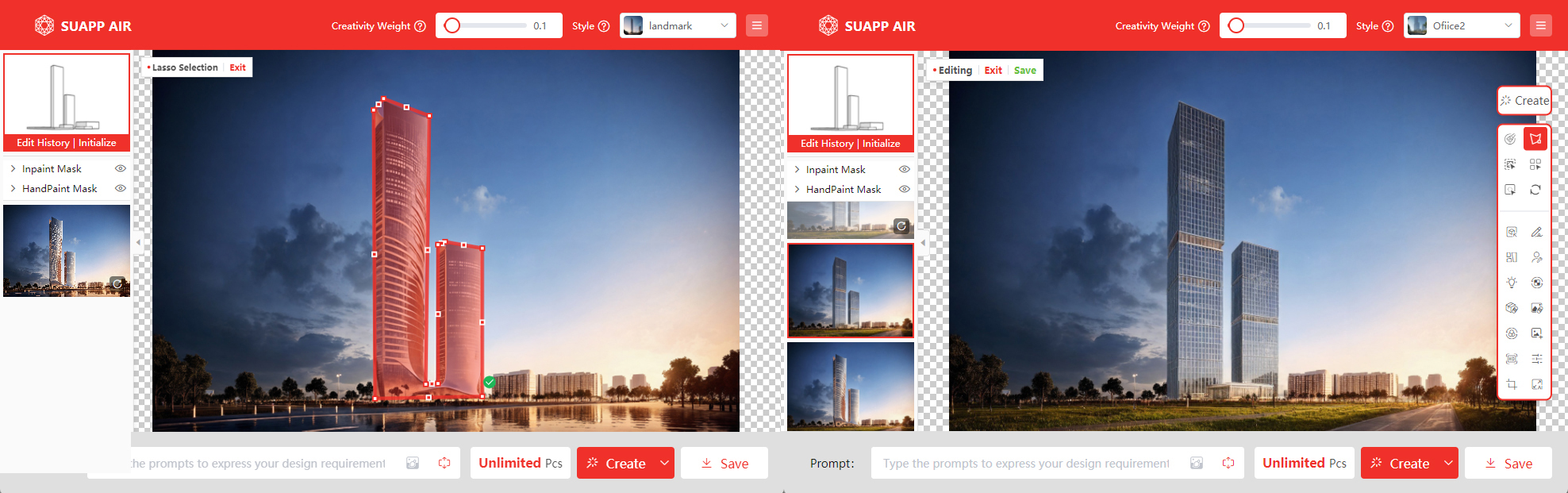
2. Lasso Selection
Freely drag to draw a polygonal lasso to define the mask area, with precise control over boundary points. Best suited for well-defined or structured regions.
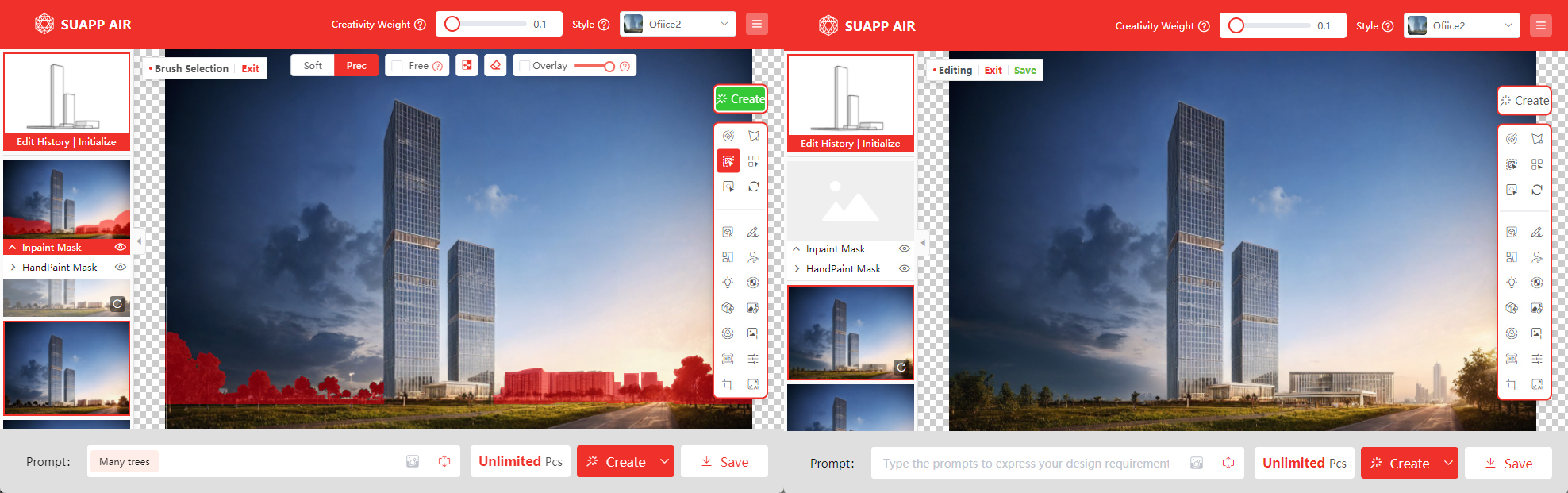
3. Quick Selection
Rapidly identifies complete objects and regions within the image. Hover the cursor and click to define the mask area. Ideal for selecting similar or continuous objects.
4. Precise Selection
Automatically detects precise objects and regions within the image. Click on different color blocks to define the mask area. Suitable for selecting irregular-shaped objects with accuracy.
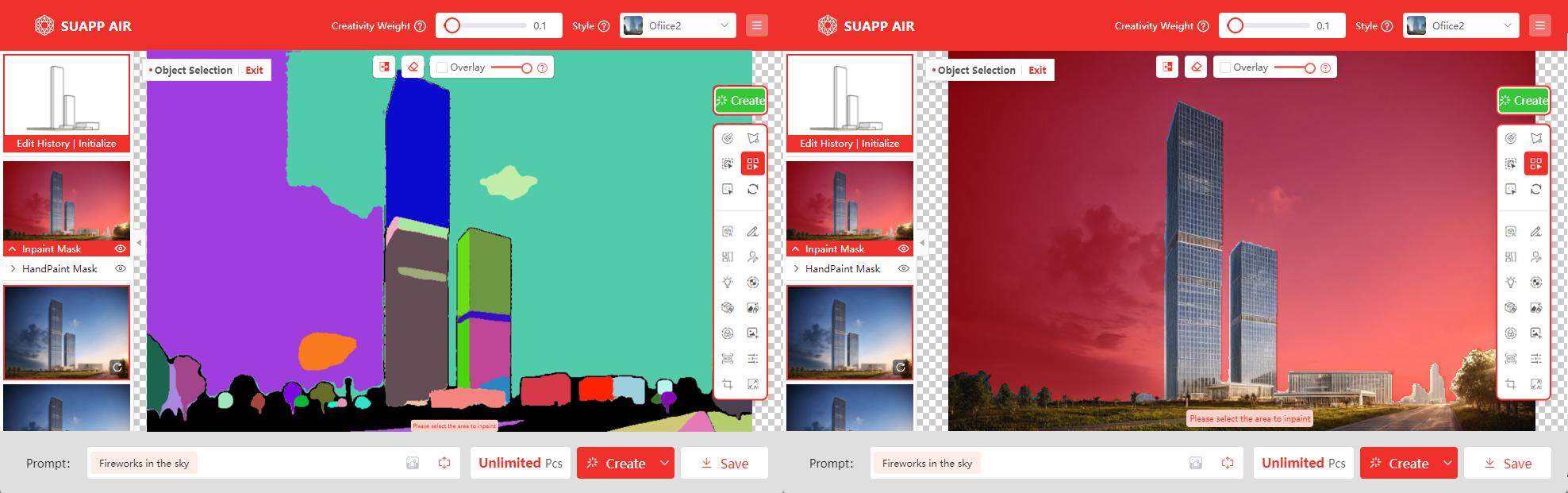
5. Instant Selection
Allows real-time point-and-drag selection of objects and regions without pre-processing. Right-click to exclude areas from the selection. Ideal for quickly selecting complete objects with minimal steps.
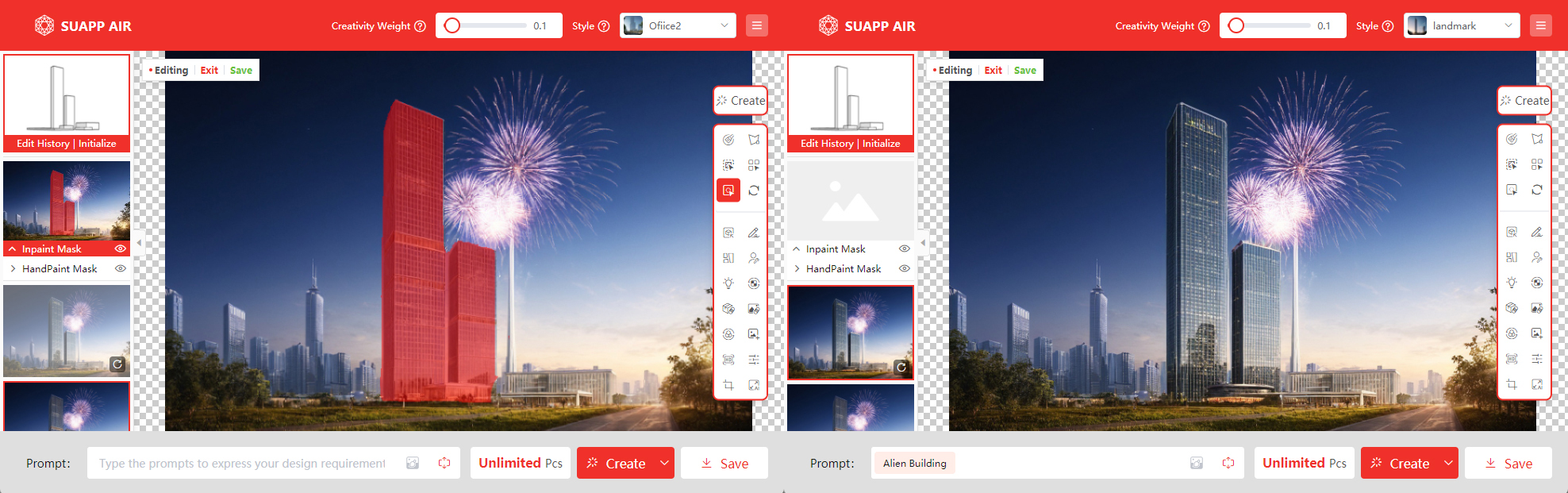
6. Reset
Clears the selection mask.
- /113
Rendering Styles
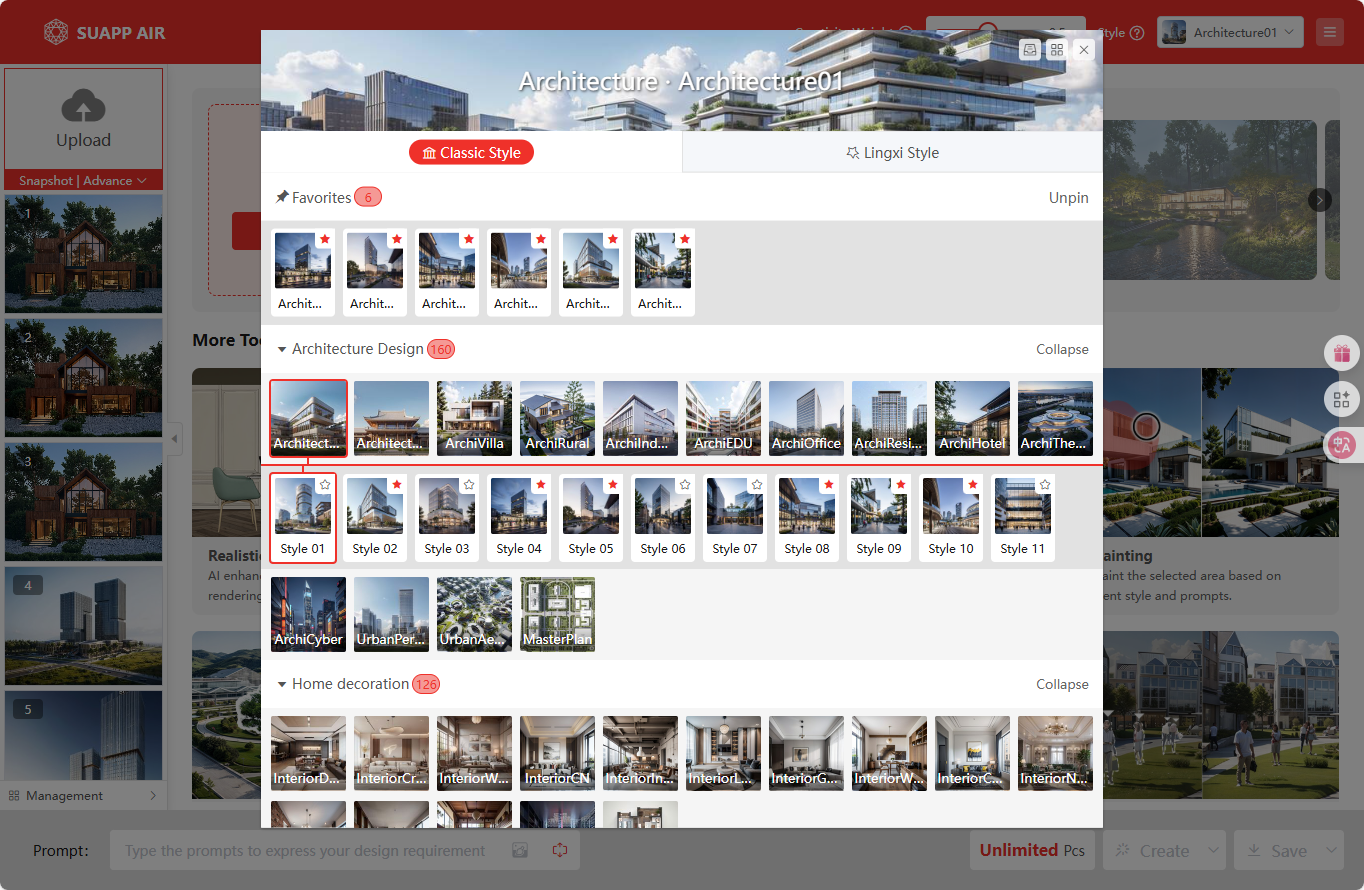
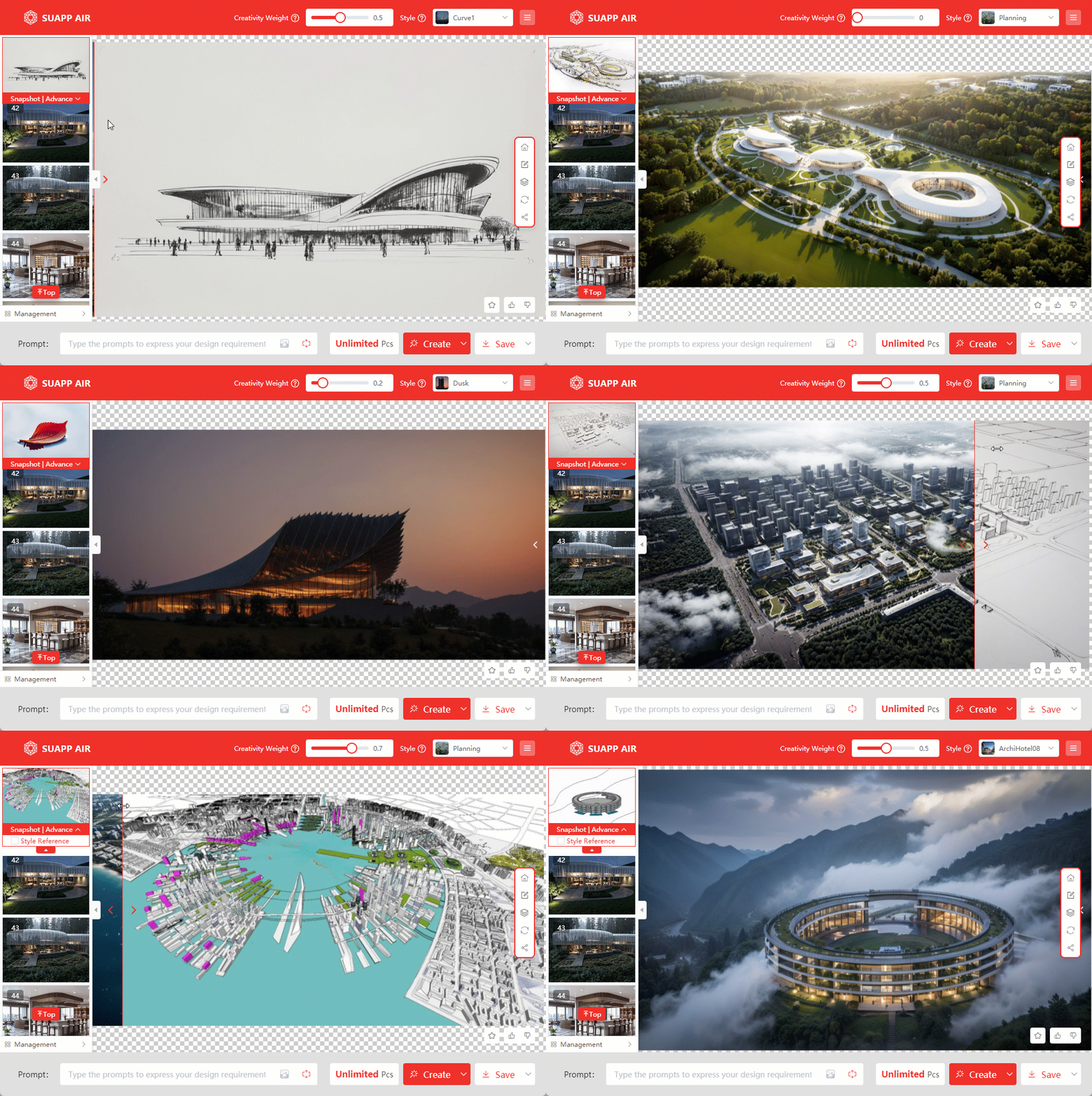
SUAPP AIR comes with hundreds of high-quality rendering styles, and new styles are continuously being added.
Style Tips:
1. Explore various styles to inspire creativity.
2. Lingxi styles are highly accurate and respond effectively to prompts.
3. Add a reference image to guide the rendering and achieve unique results.
4. Favorite your go-to styles for quicker access.
Demo Video: SUAPP AIR | 06 Rendering Style
- /286
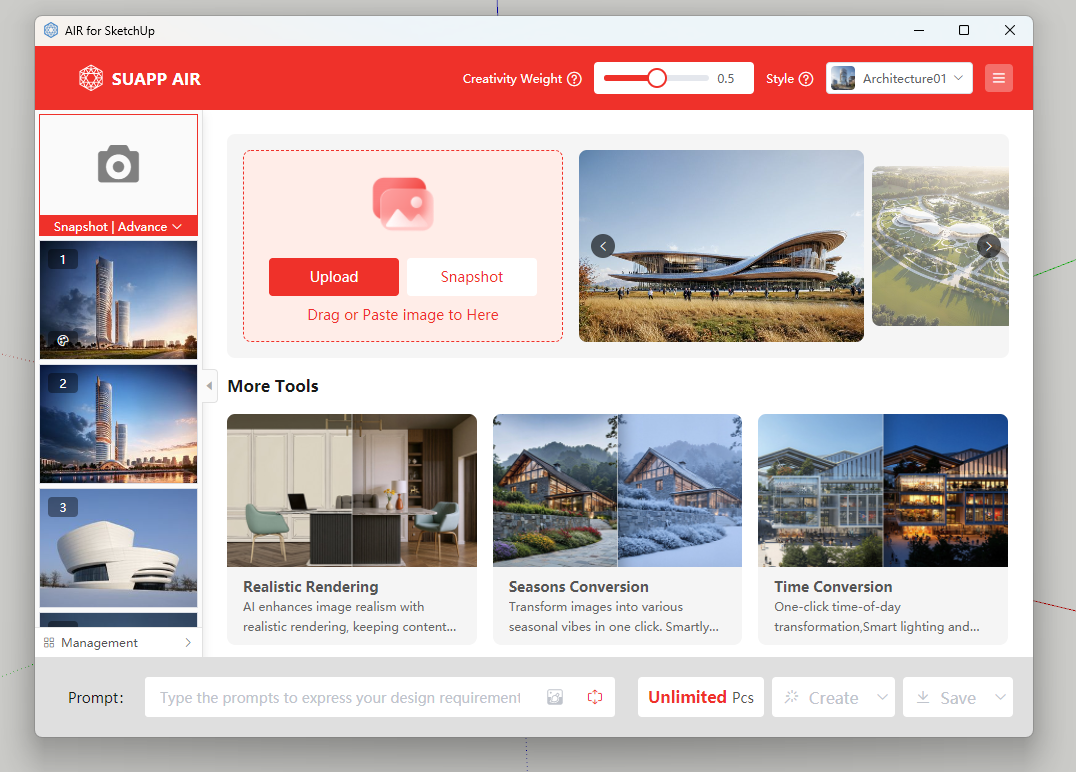
Open SUAPP AIR
Two Ways to Access SUAPP AIR:
PluginVersion: Download and install the SUAPP AIR plugin for your software, then open it to get started.
WebVersion: Open SUAPP AIR directly in your browser at https://suapp.ai
Desktopversion: available for Windows and Mac.
- /393
What is SUAPP AIR?
“AI gives it form, you give it meaning.”
SUAPP AIR (AI Render) is an AI-powered inspirational rendering tool developed by SUAPP. Unlike traditional rendering software, AIR is designed to ignite creativity and provide artistic inspiration rather than generating photorealistic visuals.
With simple parameter adjustments, AIR allows you to quickly generate a “rendered image” that serves as a conceptual reference to support and refine your design process. It is currently applicable to a wide range of fields, including urban design, architectural design, landscape architecture, interior design, plan views, physical models, and hand-drawn illustrations.
AIR is not a conventional renderer—it is a tool for accelerating the exploration of design possibilities.
30s Quick Video Introduction: SUAPP AIR | Quick Introduction
2nd Anniversary Feature Introduction: SUAPP AI 2nd Anniversary
Basic Tutorial, Still Being Updated: Basic tutorial of AIR for SketchUp - YouTube
- /85
How many devices can SUAPP AIR be used on?
SUAPP AIR can be accessed from multiple devices, but only one can be used at a time. An internet connection is required.
- /54
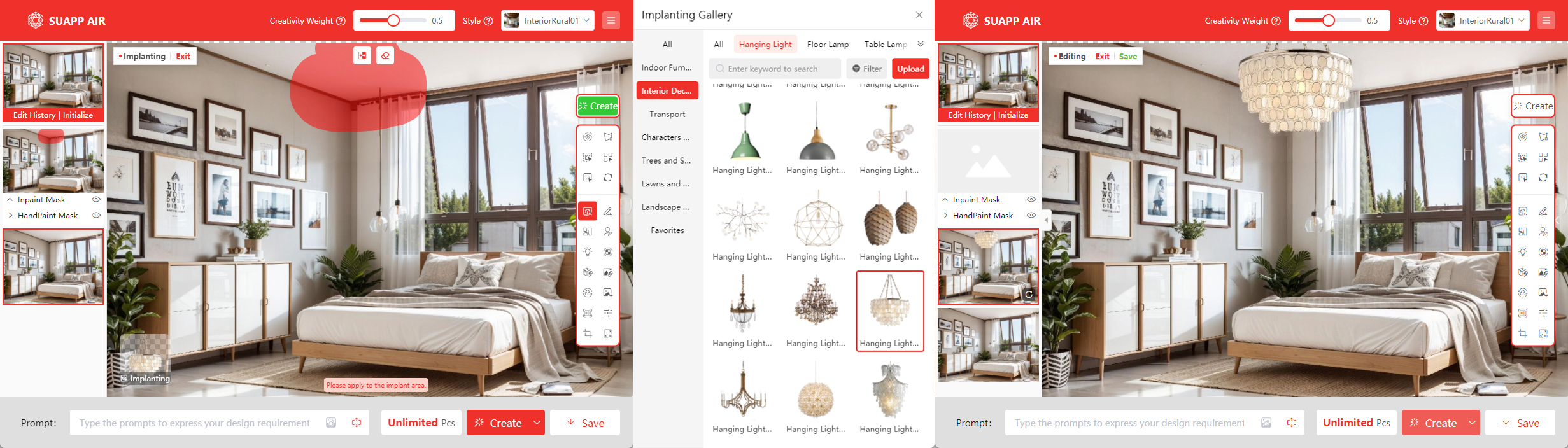
Implanting
Places a new object into a specified location within the image while preserving its key characteristics as much as possible. Ideal for intelligent object replacement or generation, such as modifying building façades, changing furniture styles, or adding vegetation.
Demo Video: SUAPP AIR | 31 Impanting
- /62
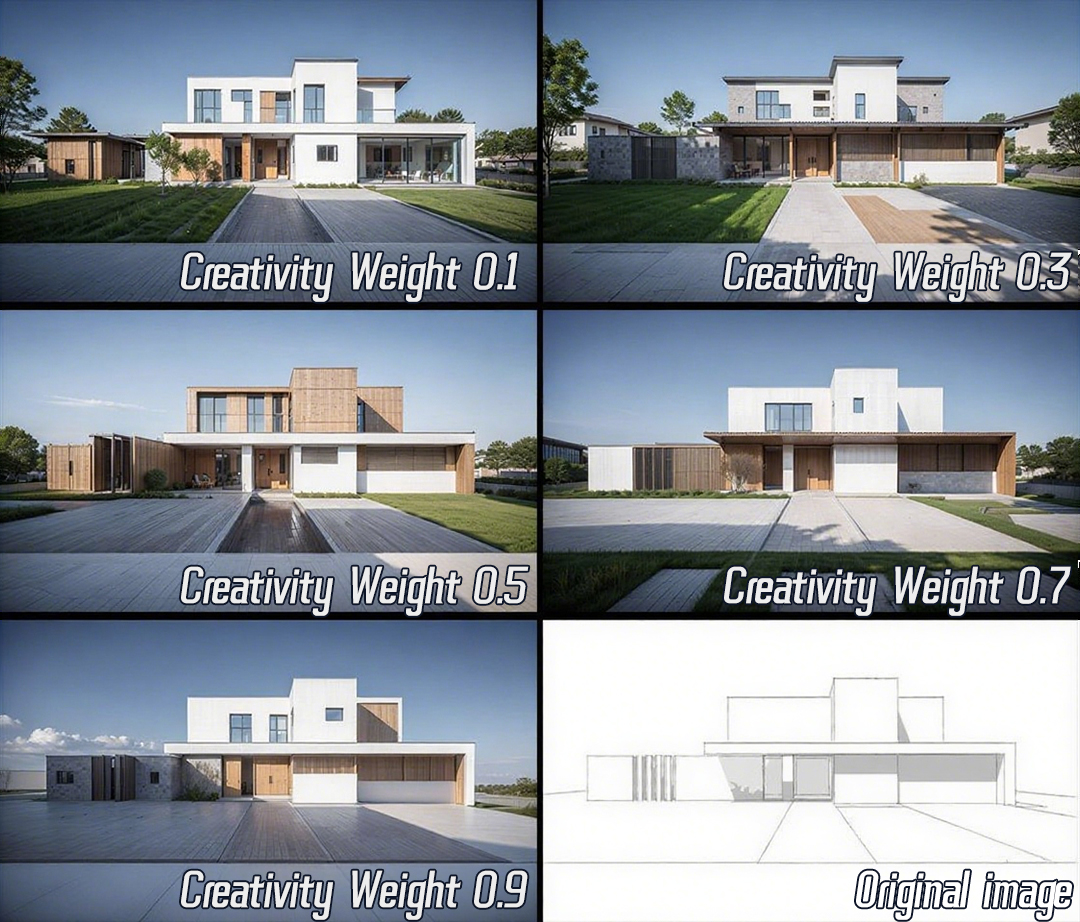
Creativity Weight
The default Creativity Weight is 0.5. Lower values give the AI more freedom, creating richer scenes; higher values keep results simpler and closer to the input.
Start by choosing a style and rendering with default settings to see how the AI responds. Then adjust the slider based on your needs.
Demo Video: SUAPP AIR | 07 Weights and Prompt Words
- /138
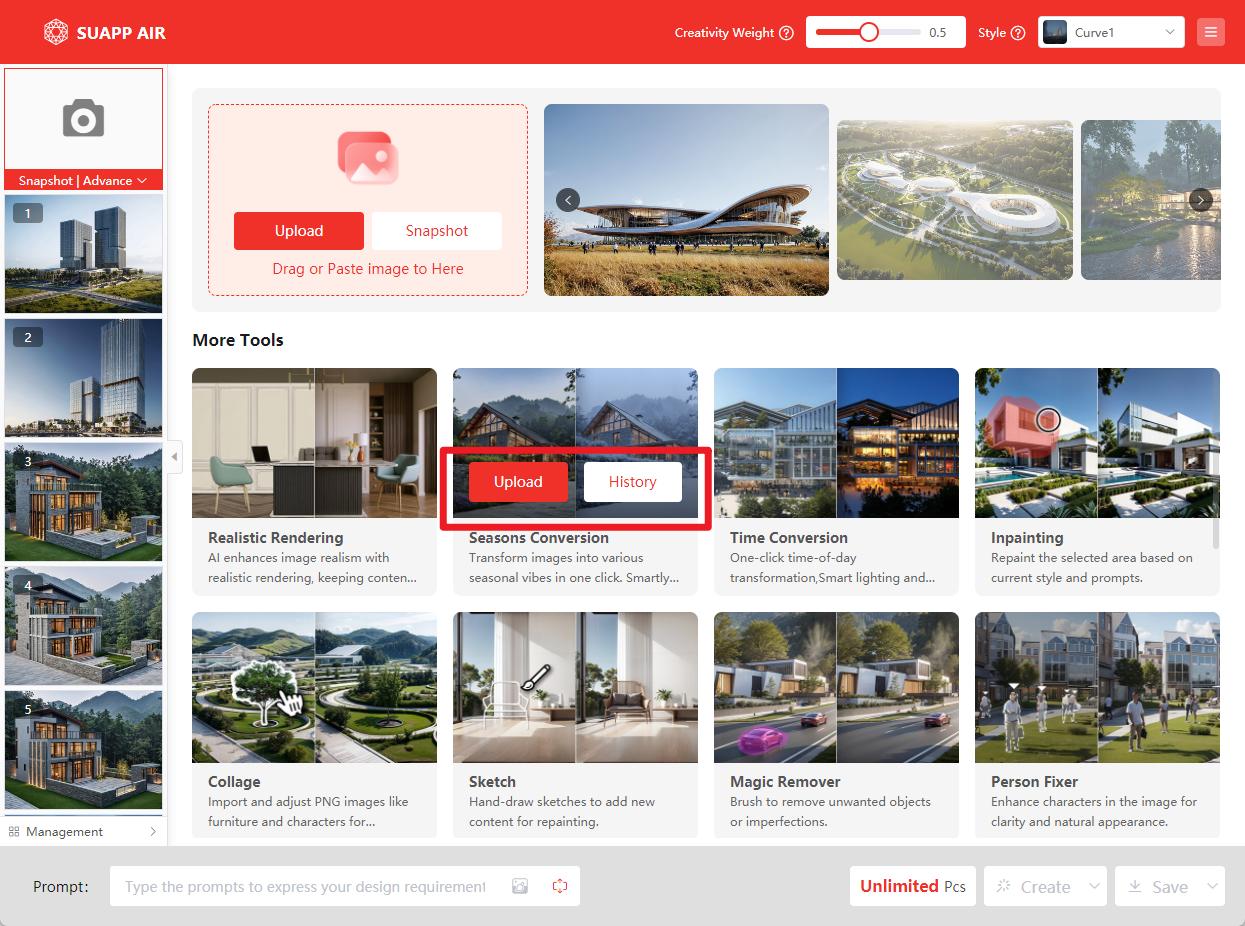
Interface Home
The main interface consists of two sections:
Top Section: Showcases featured cases that you can copy with one click to learn rendering techniques and get inspired.
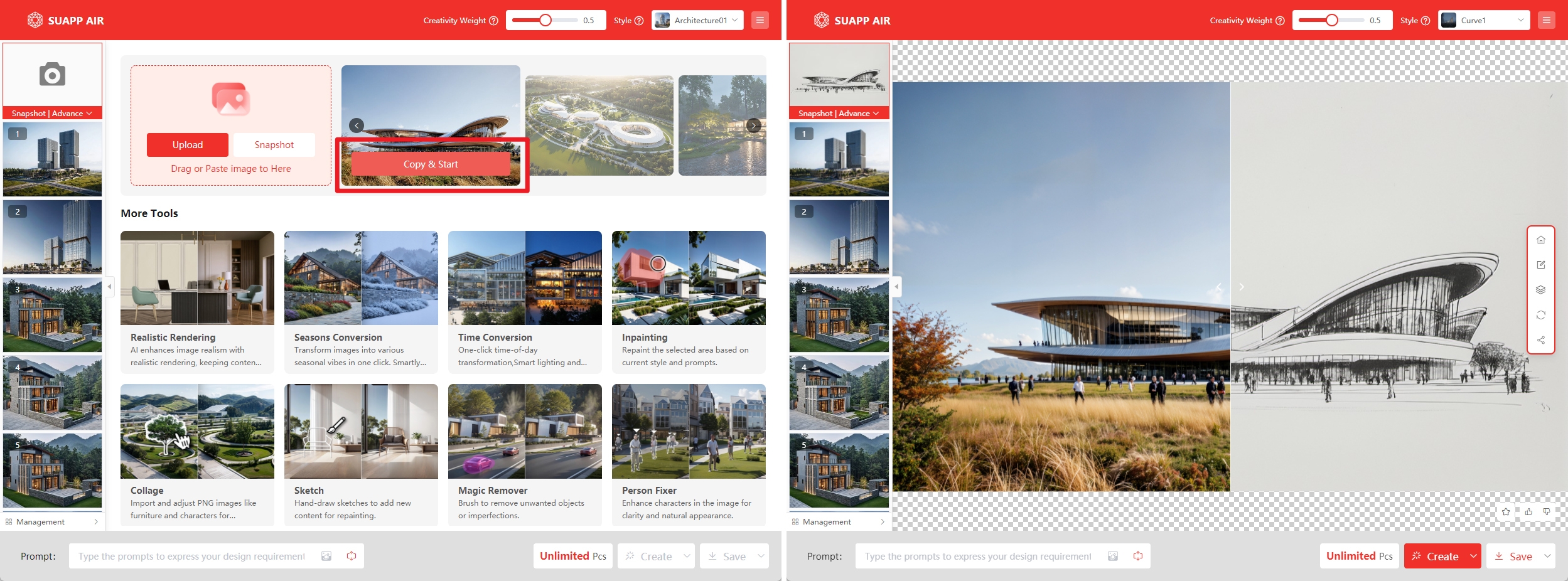
Main Section: Displays core features—simply select the desired tool, upload an image, and enter the corresponding mode with one click.
- /434
How to purchase, download and install SUAPP AIR?
Get Started with SUAPP AIR:
1. Subscribe: Visit https://suapp.ai/member to choose your plan.
2. Integrate: Use SUAPP AIR seamlessly within SketchUp or your preferred design software.
3. Install: Download the plugin from the SUAPP AI website: https://suapp.ai
4. Launch & Create: Open SUAPP AIR in your software, log in to your account, and start designing.
5. Web Access: Enjoy the full SUAPP AIR feature set directly in your browser at https://suapp.ai
Detailed video demonstration: SUAPP AIR | 01 Installation and Registration - YouTube
- /79
Can I purchase and use SUAPP AIR separately?
Yes, AIR is one of the SUAPP AI plugins and can be used independently. You can access it by:
● Purchasing the Basic or Standard Plan (90 days)
● Using the web version directly, without installing any software
Just visit https://suapp.ai on your computer and click SUAPP AIR in the top-right corner to start.
- /64
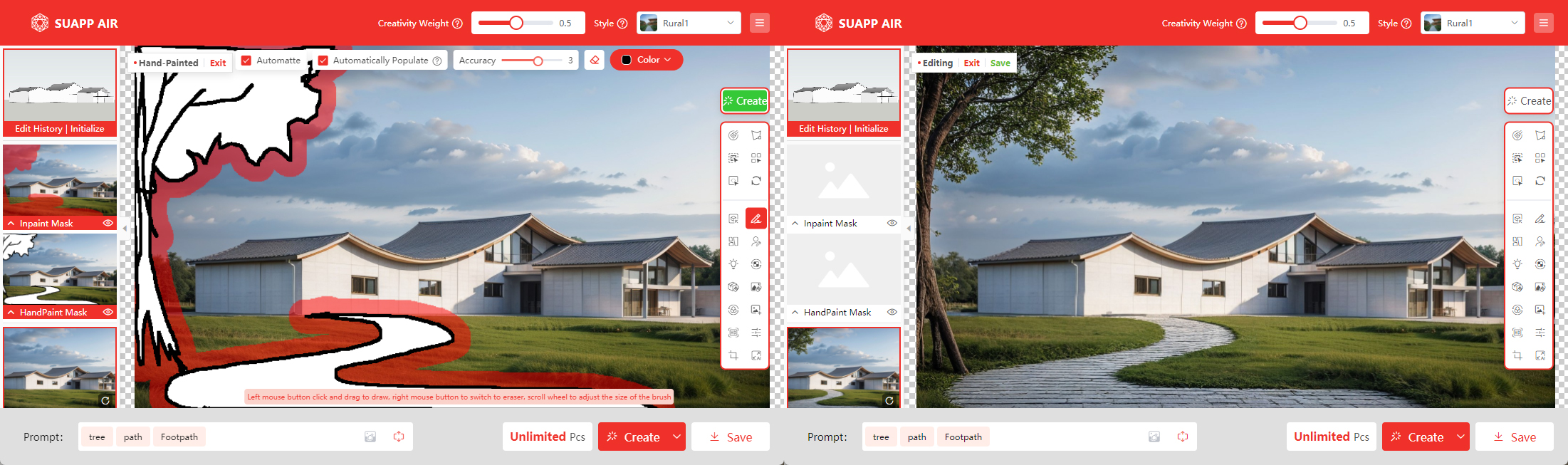
Sketch
Add new content to the image by drawing simple line sketches. Works in combination with the mask area for localized edits and enhancements. Perfect for adding desired elements such as plants, roads, vehicles, background buildings, and more with ease.
Demo Video: SUAPP AIR | 12 Doodle Function
- /58
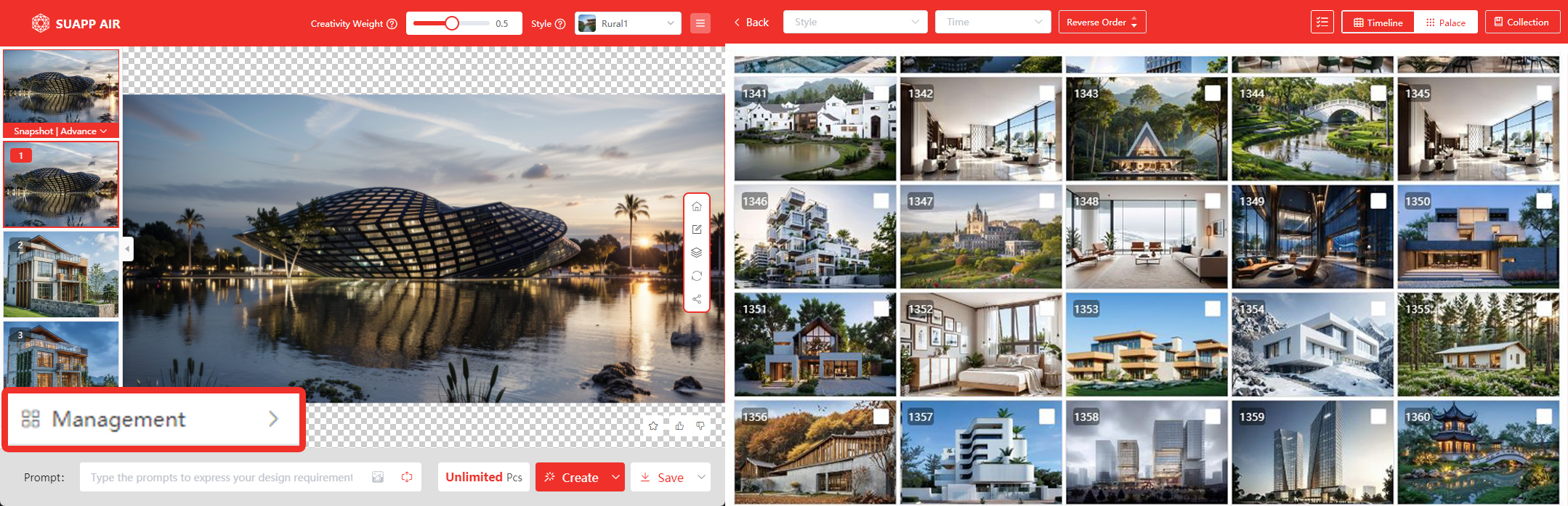
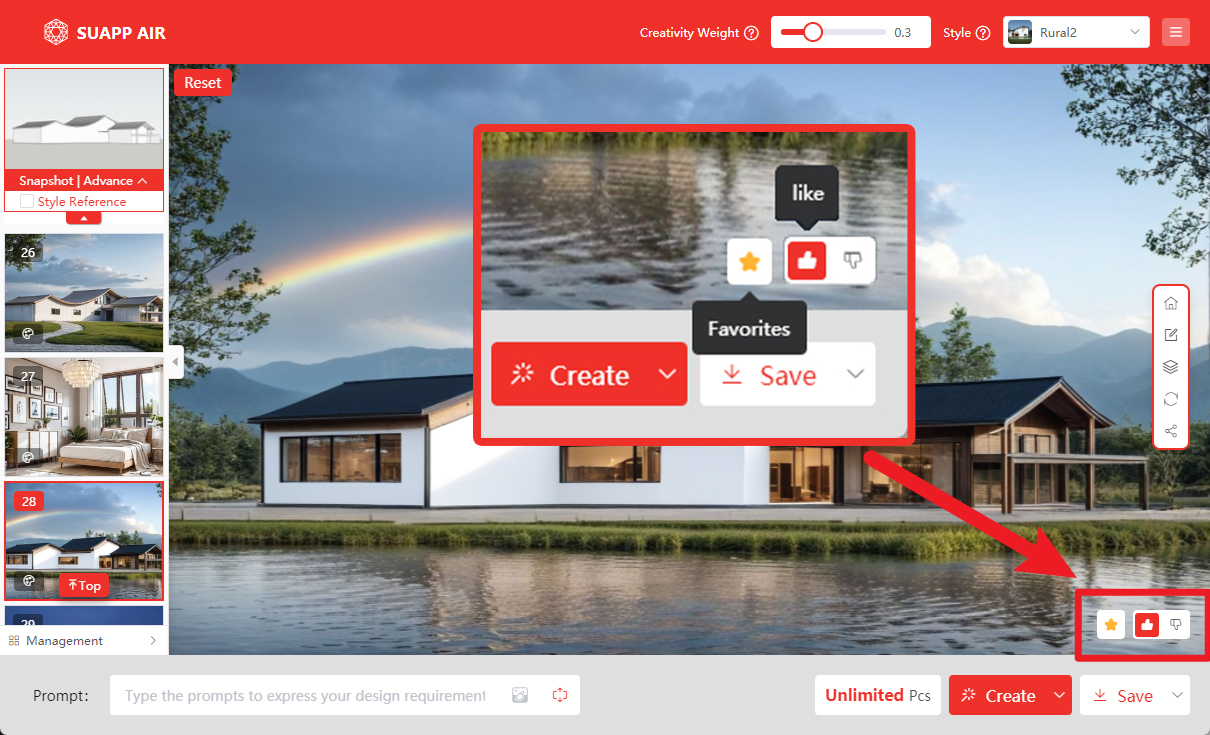
Render History
Easily save or delete multiple render results at once. The history panel supports various sorting, filtering, and display options to help you manage your images efficiently.
Demo Video: SUAPP AIR | 04 History and Batch Management
- /132
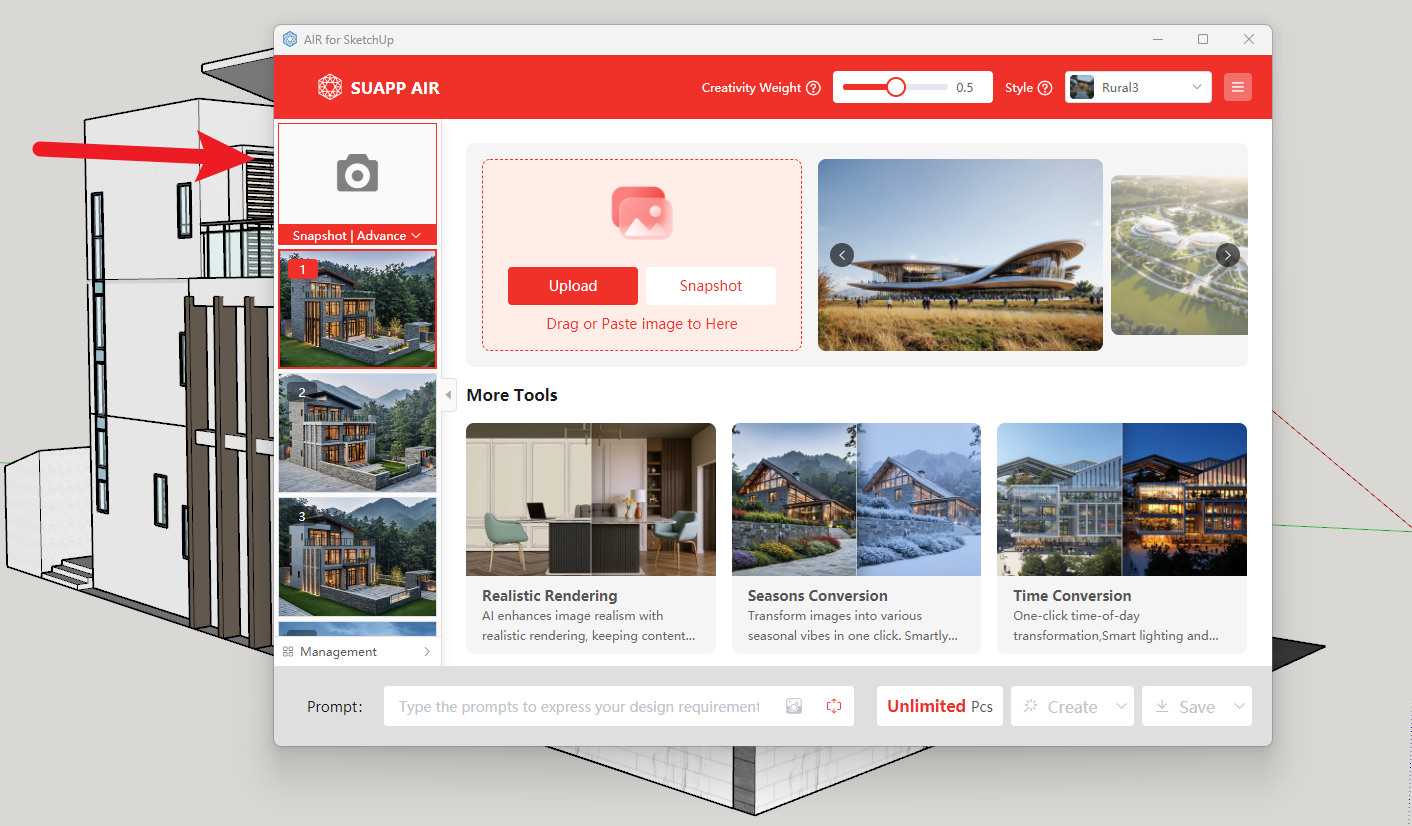
Importing image
You can import images in four ways:
1.Screenshot– Click the top-left corner in SUAPP AIR to capture your current model view.
2.Upload an Image– Select and upload an image file from your device.
3.Drag and Drop– Drag an image file directly into the interface.
4.Paste (Ctrl+V)– Copy an image and paste it directly into SUAPP AIR.
- /267
Which software does SUAPP AIR support?
1. Plugin version—SUAPP AIR currently supports most major design software, including SketchUp, Rhino (Windows), Revit, 3ds Max, Blender, and Photoshop.
2. Web version—no hardware needed, just log in at https://suapp.ai.
3. Desktop version—available for Windows and Mac